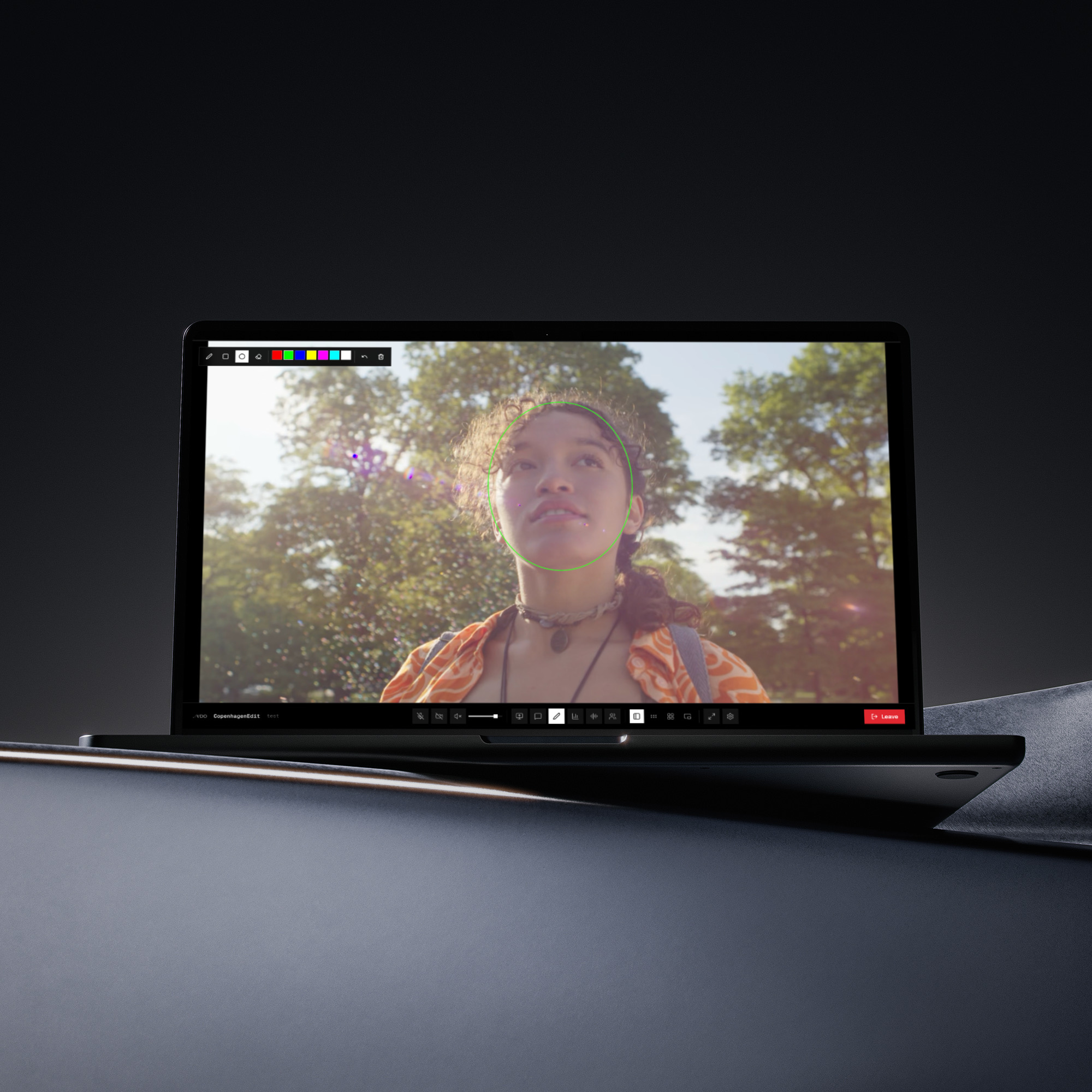
An OpenFX plugin for DaVinci Resolve. Drop it on a clip; your timeline emits colour-tagged NDI alongside the render. Feed VDO Sessions for live review, or a compatible NDI receiver on your local network. Available to onboarded VDO teams.
01
A clip-effect plugin in Resolve.
02
NDI out alongside the render.
03
Colour-tagged. Rec.709 / P3 / Rec.2020.
04
Available to onboarded VDO teams.
01 · What it is
From Resolve to live review.
VDO OFX is a small OpenFX plugin that lives inside DaVinci Resolve. You drop it on a clip the same way you’d drop any other effect: on the timeline, on a compound clip, or on the entire programme. From that moment the timeline you’re looking at also exists on the network as an NDI feed that compatible receivers on the local network can pick up.
We built the plugin so editors and colourists can send the live timeline into review without exporting a new file. Pick up its NDI feed in VDO Streamer and carry it into Sessions while you work in Resolve.
01Pass-through effect by default; the Resolve image is unchanged.
02Carries the working colour space and transfer function.
03Audio rides along on discrete channels.
04Feeds VDO Streamer or compatible NDI receivers on the local network.
02 · How it works
Four steps. From timeline to room.
01Sign in to your VDO account and download the OFX bundle for your platform. Drop it in the OFX folder Resolve already watches; restart Resolve and the plugin appears in the effects library.
02Drag VDO OFX onto a clip, a compound clip, or the entire programme on the timeline. Choose the output settings for your source and receiver.
03As Resolve renders the timeline for playback, the plugin publishes the same frames as a colour-tagged NDI source on the local network, where compatible receivers can discover it.
04Select the NDI source in VDO Streamer to send it into Sessions, or receive it in a compatible local NDI player. In Sessions, invited clients follow the cut live.
Resolve timeline
OFX clip effect
VDO OFX plugin
Colour-tagged NDI
NDI on the LAN
Discoverable source
Sessions / consumers
Browser, NDI tools
Resolve renders the frames; the plugin publishes NDI locally. VDO Streamer encodes that feed for Sessions.
03 · Workflow fit
Built for Sessions, open to NDI workflows.
Send the cut or grade into a Sessions review room, or feed an NDI monitor at the facility. The plugin publishes locally; you choose where the feed goes next.
Team access.
Download with your VDO account.
Onboarded teams can sign in and download the build for their platform. We arrange access directly and can walk through the Resolve-to-review setup with your facility.
No middleware.
Resolve to network, direct.
The plugin publishes NDI from inside Resolve, without a separate capture card or second machine. For remote review, VDO Streamer receives that feed and sends it into Sessions.
Colour-tagged.
The frame Resolve makes.
The plugin carries colour-space and transfer-function tags in NDI metadata. Those tags describe the SDR, HLG or PQ signal; choose a receiver and display path that handle the format you are sending.
Plays nicely with NDI.
Choose the receiver.
The plugin emits standard NDI for compatible receivers on your network, including VDO Streamer and NDI Studio Monitor. Check the receiver’s supported video formats and HDR handling for the monitoring path you need.
04 · Specs & compatibility
Specs
Resolve & OS
DaVinci Resolve 18 and 19 (Studio & free)
macOS 12 or later: Apple Silicon & Intel
Linux: Rocky / Alma / Ubuntu LTS (preview)
Windows: not supported
OFX 1.4 host API
Drops in Resolve’s standard OFX folder
Colour pipeline
Pass-through effect by default; Resolve image unchanged
Rec.709, P3 D65, Rec.2020 primaries
SDR, HLG and PQ transfer functions
Carries colour tags through to NDI metadata
10-bit at the timeline’s working precision
No LUT applied by the effect
Transport & audio
Standard NDI on the LAN
Discoverable local NDI source
Audio: discrete channels preserved on the LAN
Frame rate: matches the timeline
Pairs with VDO Sessions (Colour and Editorial)
Compatible NDI receivers on the local network
Note on networks.The plugin publishes NDI on the local network. To review across cities, VDO Streamer receives and encodes that feed for Sessions, which carries it to invited reviewers. Keep local NDI access within the facility network you intend to share with.
05 · Quick answers
Things people ask about the Resolve bridge.
Check installation, receiver compatibility and the HDR path before your first live review.
How do I get the plugin?
Onboarded VDO teams can sign in to download the plugin.Contact us to discuss access for your team.
What versions of Resolve does it support?
DaVinci Resolve 18 and 19, on Studio and on the free edition. The plugin uses the OFX 1.4 host API that both editions ship with.
Can I use it without VDO Sessions?
Yes. The plugin emits standard NDI for compatible receivers on your local network, such as NDI Studio Monitor. Use Sessions when you want to carry the live feed to invited remote reviewers.
How is NDI different from screen-share?
The plugin takes the image Resolve renders at the effect, rather than capturing the desktop with menus and scopes. It publishes an NDI feed with colour metadata for the receiver you choose.
Does it work with HDR?
Yes. The plugin carries the working transfer function through to NDI metadata for HLG and PQ output. The receiving player and display need to support the chosen HDR format; metadata alone does not make every NDI receiver HDR-capable.
How do I install it?
Sign in to your VDO account, open the Downloads page, grab the OFX bundle for your platform, and drop it into the standard OFX plugins folder Resolve already watches. Restart Resolve once and the plugin shows up in the effects library. Sparkle handles updates after that.